
Why Button Design Matters
Buttons are action triggers.
They tell users:
What can be clicked
What action will happen next
Which action is most important
Good button design helps users move through a product confidently.
Poor button design forces users to stop and think.
And every extra second of thinking increases friction.
Mistake 1: Not Defining Button Hierarchy
One of the most common UI mistakes is giving every button the same visual importance.
When every button looks identical, users cannot determine which action is the primary one.
Example
Imagine a signup page containing:
Login
Sign Up
Forgot Password
If all three buttons have identical styling, users must spend extra effort deciding what to click.
The Fix
Every interface should have three button levels:
Primary Button
The most important action.
Examples:
Create Account
Continue
Purchase Now
Secondary Button
Alternative actions.
Examples:
Cancel
Save Draft
Back
Tertiary Button
Low-priority actions.
Examples:
Learn More
Help
Terms & Conditions
Proper hierarchy reduces decision-making and improves usability.
Mistake 2: Poor Visual Hierarchy
Even when button types exist, designers often fail to establish clear visual hierarchy.
Users should instantly recognize:
Which action is most important
Which action is optional
Which action is secondary
Common Problem
Two buttons placed side by side:
Continue
Cancel
Both use identical colors and weights.
This creates confusion.
The Fix
Use visual weight intentionally.
Primary actions should have:
Stronger colors
Higher contrast
Greater visual prominence
Secondary actions should support the primary action without competing for attention.
Mistake 3: Inconsistent Button Styles
Inconsistency damages trust.
Users quickly learn design patterns.
If button styles change throughout the product, users become uncertain.
Common Examples
Primary buttons appear:
Filled on one screen
Outlined on another
Different colors elsewhere
This breaks predictability.
The Fix
Create a design system.
Define:
Primary button
Secondary button
Tertiary button
Hover states
Disabled states
Loading states
Consistency improves learnability and usability.
Mistake 4: Incorrect Padding
Button padding significantly impacts usability.
Too Little Padding
Creates cramped buttons.
Problems include:
Harder to tap
Difficult to scan
Feels visually crowded
Too Much Padding
Creates oversized buttons.
Problems include:
Wasted space
Reduced content visibility
Unbalanced layouts
The Fix
Maintain consistent spacing.
A common guideline:
16–20px vertical padding
24–32px horizontal padding
Exact values vary by platform and design system.
Mistake 5: Overdesigning Buttons
Many designers add unnecessary visual effects:
Multiple shadows
Heavy gradients
Excessive borders
Complex textures
While these may look impressive, they often reduce clarity.
The Problem
The more decorative a button becomes, the harder it is to recognize its purpose.
The Fix
Keep buttons simple.
Focus on:
Contrast
Readability
Clarity
Accessibility
Users care more about completing tasks than visual effects.
Mistake 6: Buttons That Are Too Small
Small buttons are frustrating.
Especially on mobile devices.
Common Issues
Users accidentally tap:
Nearby buttons
Wrong actions
Adjacent links
This increases user errors.
The Fix
Design for fingers, not cursors.
Recommended touch target sizes:
Minimum 44×44px (iOS)
Minimum 48×48dp (Android)
Larger tap areas improve accessibility and usability.
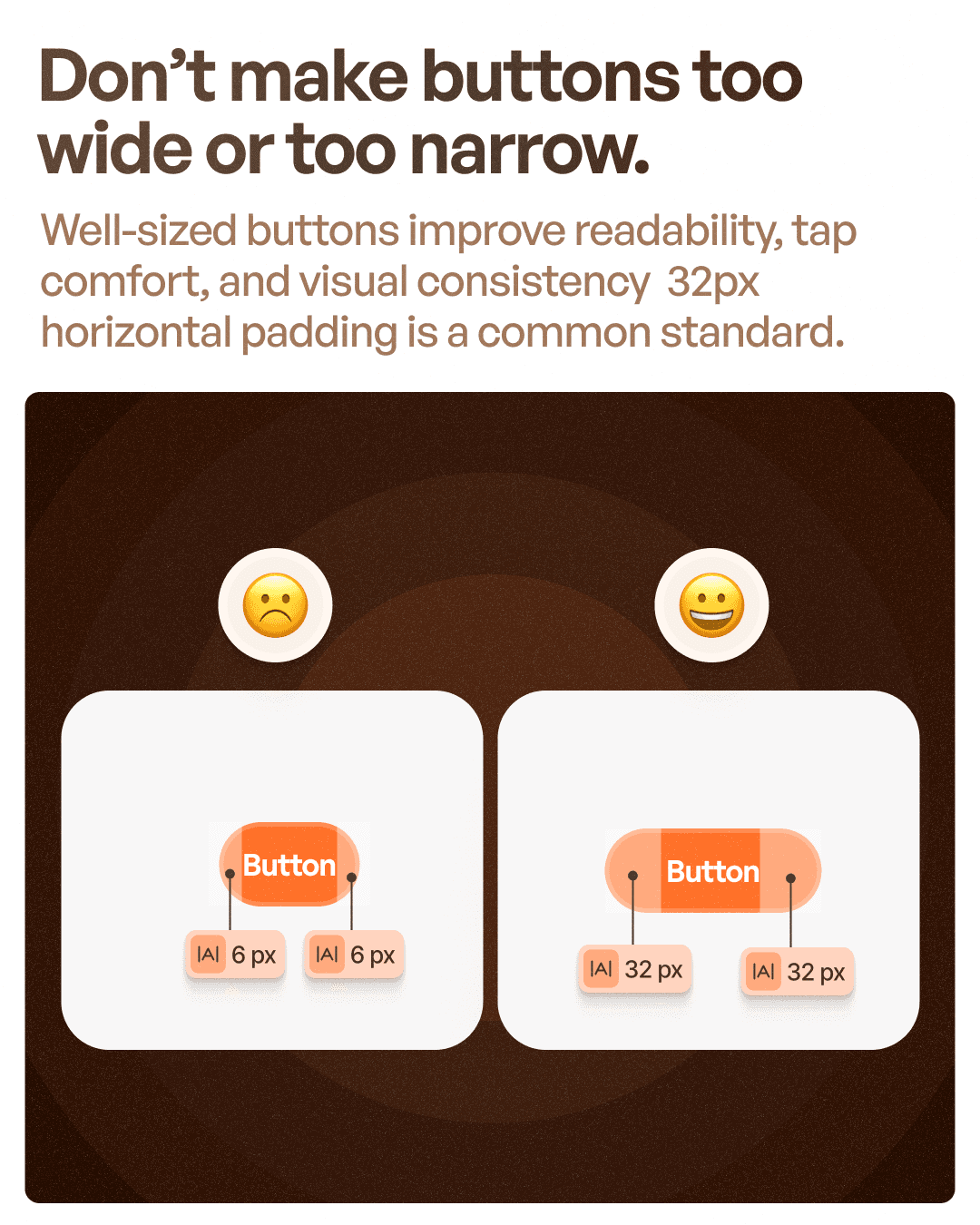
Mistake 7: Buttons That Are Too Narrow
Many interfaces use buttons that barely fit their text.
This creates several problems:
Reduced readability
Poor visual balance
Smaller tap targets
Example
A "Continue" button tightly wrapped around text often feels weak and difficult to interact with.
The Fix
Provide sufficient horizontal padding.
Many modern design systems use:
24px–32px side padding
This creates comfortable, balanced buttons.
Mistake 8: Missing Button States
Users need feedback.
Without visual feedback, users are unsure whether their action was successful.
Essential States
Every button should have:
Default
Hover
Pressed
Focus
Disabled
Loading
Why It Matters
States communicate system behavior.
They reduce uncertainty and improve confidence.
Mistake 9: Poor Button Labels
Vague button labels create confusion.
Bad Examples
Submit
Continue
Proceed
These often fail to communicate what happens next.
Better Examples
Create Account
Download Report
Schedule Meeting
Pay ₹1,000
Specific labels improve clarity and increase conversions.
Mistake 10: Ignoring Accessibility
Buttons must work for everyone.
Including users with:
Motor impairments
Vision impairments
Temporary limitations
Accessibility Checklist
Ensure:
Sufficient color contrast
Visible focus states
Proper touch targets
Keyboard accessibility
Screen reader compatibility
Accessibility improvements often improve usability for all users.
Button Design Checklist
Before shipping any interface, ask:
Is there a clear primary action?
Are button styles consistent?
Is hierarchy obvious?
Are touch targets large enough?
Are labels clear?
Are states defined?
Is spacing balanced?
Are buttons accessible?
If the answer is no to any of these questions, the experience can likely be improved.
Final Thoughts
Buttons may seem simple.
But they influence almost every interaction inside a digital product.
The best buttons are:
Clear
Consistent
Accessible
Easy to tap
Easy to understand
When button design is done correctly, users barely notice it.
They simply complete their tasks faster and with greater confidence.
And that's exactly what great UX should do.


