
Why UI Buttons Matter
Buttons are action triggers.
They help users:
Submit forms
Complete purchases
Save information
Navigate screens
Confirm actions
Start important workflows
A well-designed button should instantly communicate:
What happens when clicked
Whether it's clickable
How important the action is
Good button design reduces friction and improves conversion rates.
Step 1: Start With the Text
Many designers start by drawing a rectangle.
This is the wrong approach.
Professional UI buttons start with the label.
Ask Yourself:
What action will happen when users click this button?
Examples:
Create Accoun, Start Free Trial, Save Changes, Download Report, Continue
Avoid vague labels such as:
Click Here, Submit, Proceed
Specific labels improve usability and increase user confidence.
Step 2: Add Auto Layout
Once your text is ready, apply Auto Layout.
Shortcut:
Shift + A
Auto Layout automatically:
Creates proper spacing
Maintains alignment
Adapts to text length
Makes buttons responsive
Without Auto Layout, every size change requires manual adjustment.
With Auto Layout, buttons become scalable and easier to maintain.
Why Auto Layout Is Essential
Imagine changing:
"Login"
to
"Start Your Free Trial"
Without Auto Layout:
Button breaks
Text alignment shifts
Manual resizing becomes necessary
With Auto Layout:
Everything adjusts automatically.
This is why modern design systems rely heavily on Auto Layout.
Step 3: Add Proper Padding
Padding determines the size and feel of your button.
Good padding makes buttons:
Easier to tap
Easier to read
More visually balanced
Recommended Starting Values
Horizontal Padding:
24px
Vertical Padding:
14px
These values work well for many desktop and mobile interfaces.
Why Padding Matters
Too little padding creates:
Cramped buttons
Small touch targets
Poor readability
Too much padding creates:
Oversized components
Layout imbalance
Wasted space
The goal is visual comfort and usability.
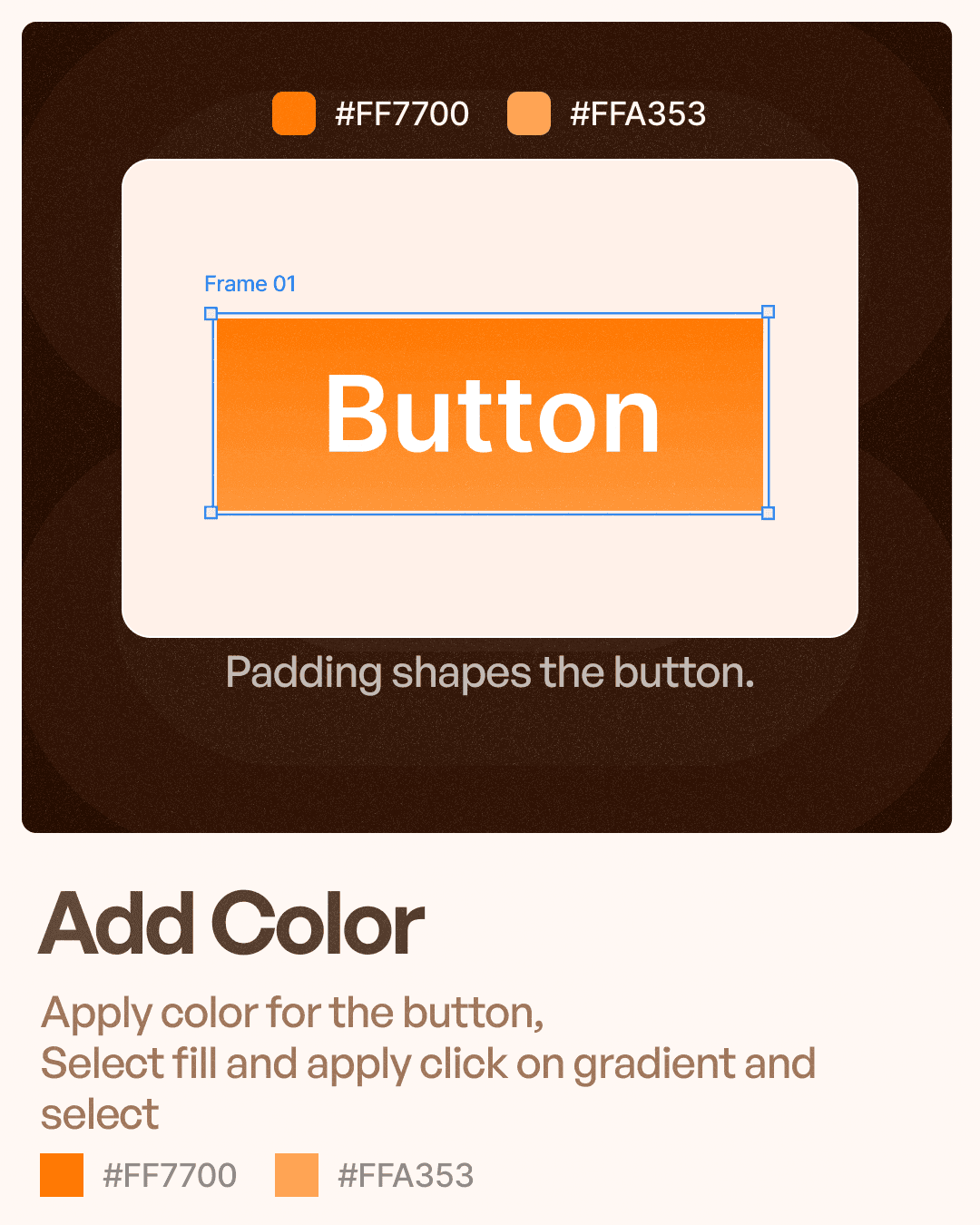
Step 4: Add Color
Color helps establish hierarchy.
Users naturally notice colored buttons first.
Primary Buttons
Use strong, high-contrast colors.
Examples:
Orange
Blue
Green
Secondary Buttons
Use:
Outlines
Neutral colors
Lower visual weight
Tertiary Buttons
Often use:
Text-only styles
Minimal emphasis
The most important action on the screen should have the strongest visual presence.
Choosing Button Colors
Button colors should align with:
Brand identity
Accessibility requirements
Visual hierarchy
Common examples:
Orange
Creates energy and urgency.
Used by brands like Swiggy and HubSpot.
Blue
Creates trust and reliability.
Common in SaaS products.
Green
Often used for success actions and confirmations.
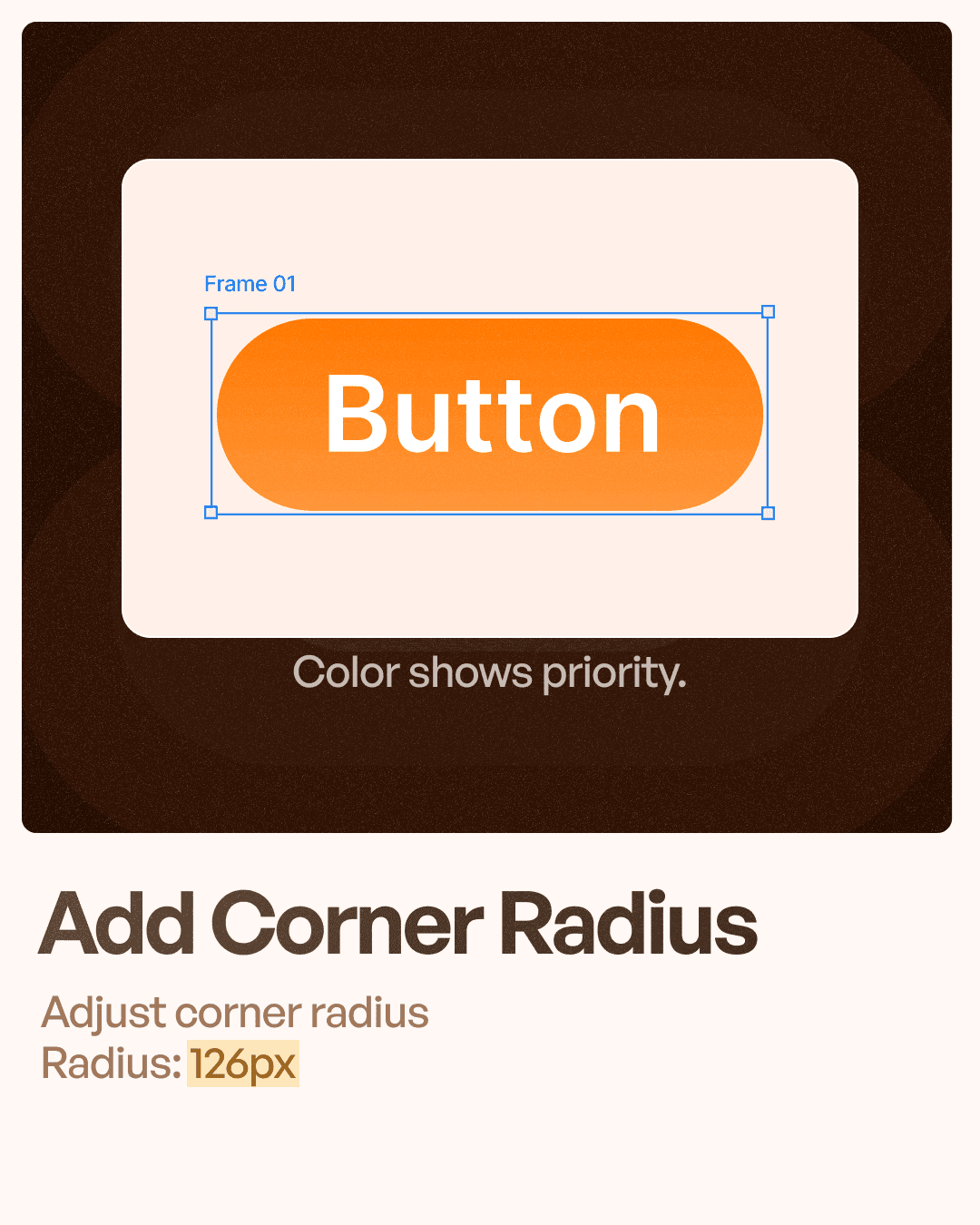
Step 5: Add Corner Radius
Corner radius affects personality.
Sharp corners feel:
Technical
Structured
Formal
Rounded corners feel:
Friendly
Modern
Approachable
Recommended Radius
A common starting value:
12px
This creates a balanced and modern appearance.
Understanding Button Shapes
Different products use different styles.
Small Radius (4px–8px)
Best for:
Enterprise software
Financial platforms
Data-heavy products
Medium Radius (10px–16px)
Best for:
SaaS products
Mobile apps
Dashboards
Pill Shape (999px)
Best for:
Modern consumer apps
Call-to-action buttons
Marketing websites
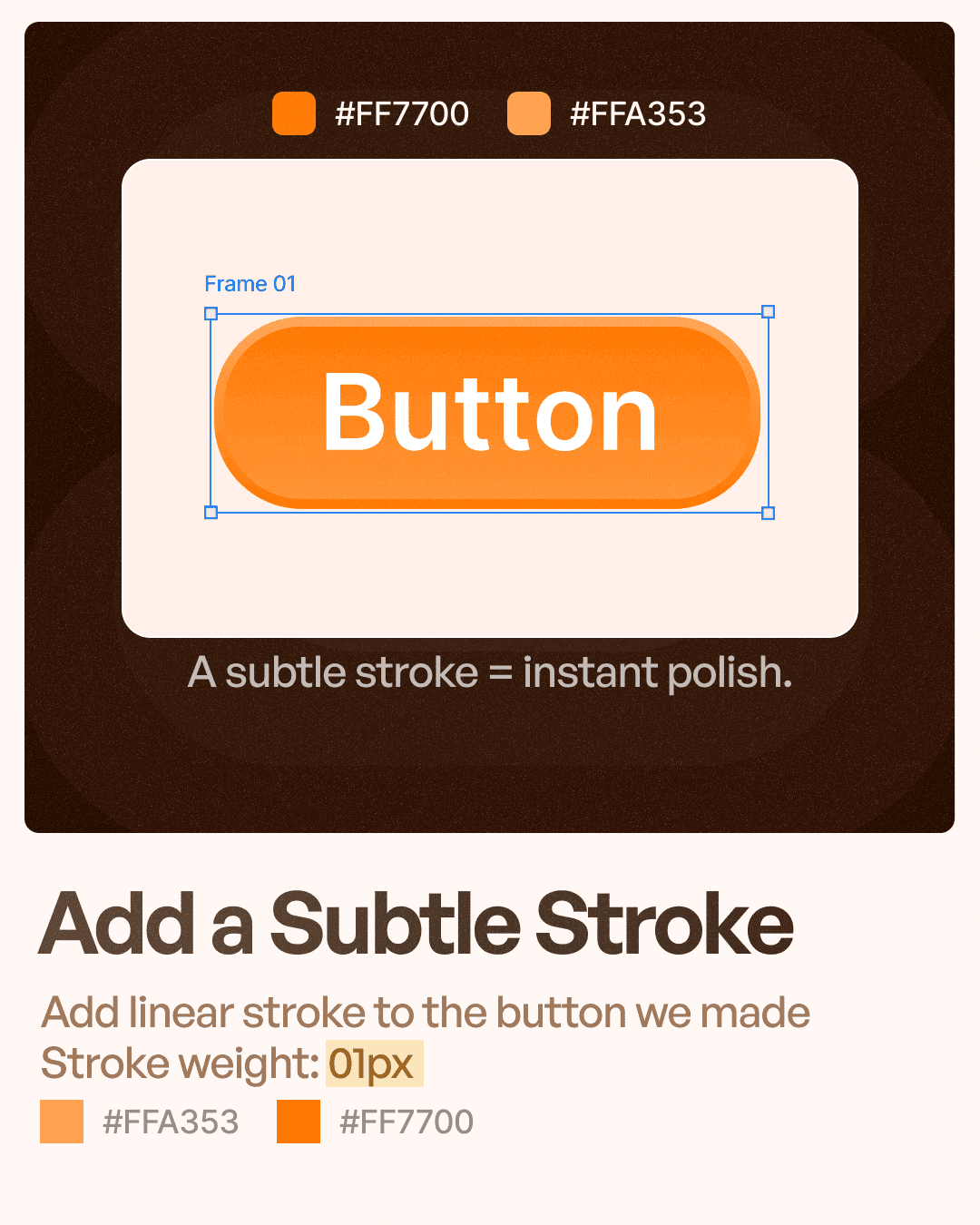
Step 6: Add a Subtle Stroke
This is a small detail that dramatically improves button quality.
Recommended Stroke
Width:
1px
Color:
A slightly lighter or darker version of the button color.
Why Strokes Matter
A subtle stroke helps:
Define button boundaries
Improve visual depth
Create a more polished appearance
Especially useful when:
Buttons sit on colorful backgrounds
Interfaces use gradients
Multiple buttons appear together
Common Button Design Mistakes
Even experienced designers make these mistakes.
Using Rectangles Instead of Auto Layout
Creates maintenance issues.
Always use Auto Layout.
Final Thoughts
Creating professional UI buttons in Figma is not about adding colors and rounded corners.
It's about creating components that are:
Clear
Accessible
Consistent
Scalable
Easy to maintain
The simplest button often performs the best.
Start with the text.
Use Auto Layout.
Apply proper padding.
Create visual hierarchy.
Add subtle polish.
And always design for usability first.


