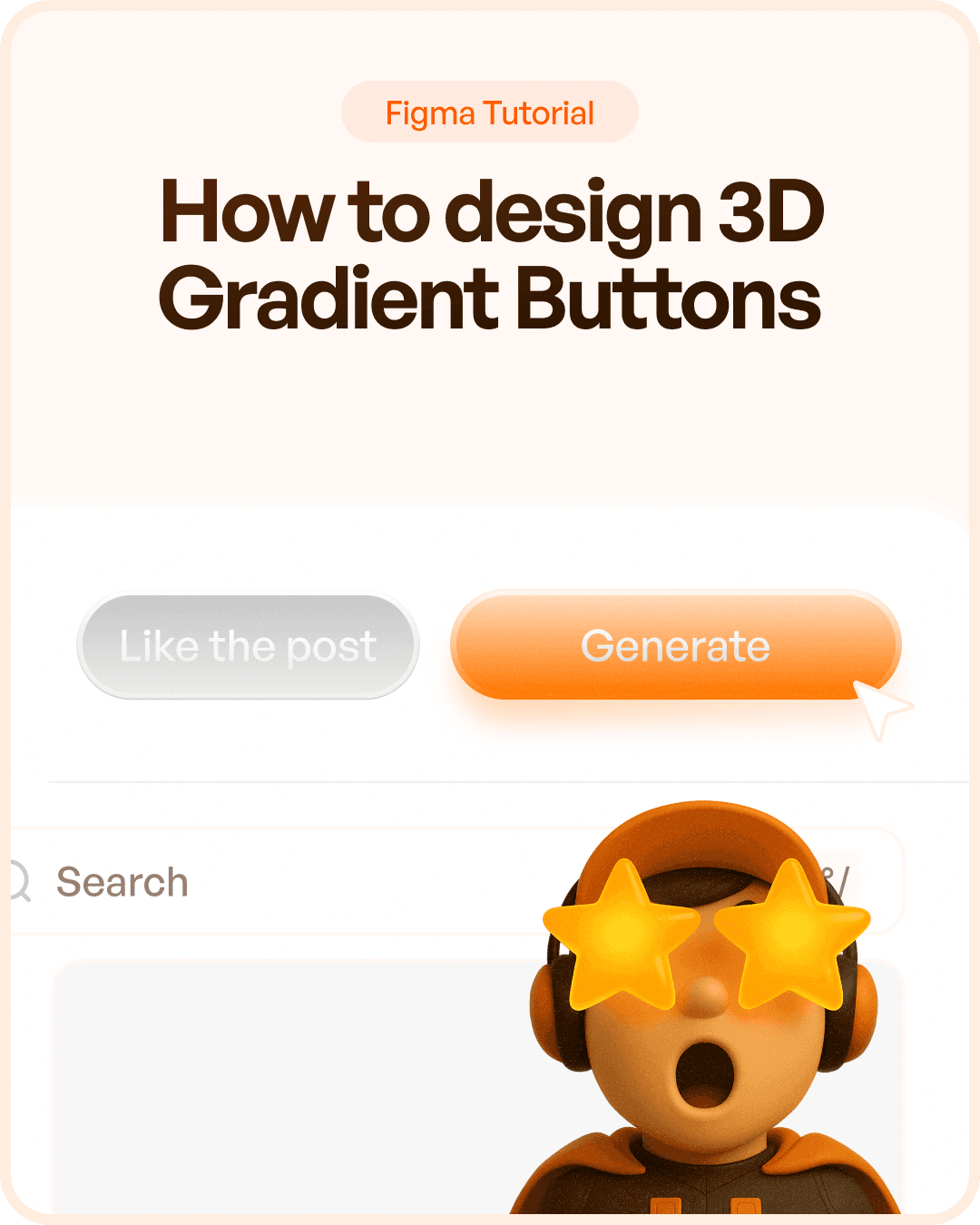

Why Gradient Buttons Work
Humans naturally notice objects that appear elevated from their surroundings.
When a button uses gradients and subtle depth, it creates the perception of a physical object that can be pressed.
This visual cue helps users quickly identify important actions.
Gradient buttons can help:
Increase visual hierarchy
Improve call-to-action visibility
Create a premium appearance
Draw attention to primary actions
Add personality to the interface
The key is subtlety. The goal is not to create a flashy effect, but to make the button feel more tactile and interactive.
Step 1: Create the Button Container
Start by creating a frame or rounded rectangle that will serve as the base structure.
For this design:
Add a 1px stroke
Use heavily rounded corners
Set the height to approximately 56px
This creates a modern pill-shaped button commonly used in SaaS products and mobile applications.
The rounded shape immediately makes the component feel approachable and touch-friendly.
At this stage, the button will still look very flat.
The depth comes in the next steps.
Step 2: Add the Button Text
Place your button label in the center.
For example:
Generate
Use a clean font such as:
Inter
General Sans
SF Pro
Roboto
A medium or semibold weight works best because it remains readable over gradient backgrounds.
Keep the text centered both horizontally and vertically.
Good button design always begins with clear communication.
Users should instantly understand what action will happen when they click.
Step 3: Create a Gradient Border
Instead of using a solid border, apply a vertical linear gradient to the stroke.
Example values:
0% → #FFEFE1
50% → #FFC591
100% → #FF7700
This creates a subtle lighting effect around the button's edge.
The gradient makes the border feel more dimensional than a standard flat stroke.
Even though users may not consciously notice it, these details contribute to the overall quality of the design.
Step 4: Add a Gradient Fill
Next, apply a second vertical gradient to the button fill.
Example values:
0% → #FFEFE1
50% → #FFC591
100% → #FF7700
Unlike the border, this gradient controls the primary visual surface of the button.
The transition from a lighter highlight at the top to a stronger orange at the bottom creates the illusion of lighting.
This is one of the core techniques used in skeuomorphic and modern 3D-inspired interfaces.
Step 5: Create Gradient Text
To enhance the premium appearance, apply a subtle gradient to the text itself.
Example values:
0% → #252424
100% → #3C3C3C
This slight variation prevents the text from looking overly flat while maintaining readability.
Avoid strong color gradients on button labels.
The text should support the design, not compete with it.
Step 6: Add a Highlight Layer
At this stage, the button already looks better than a standard flat design.
However, the real depth comes from layered highlights.
Duplicate the button shape and place the copy behind the original.
Reduce its opacity to approximately 30%.
This layer acts as a subtle reflection and creates the impression that light is interacting with the button surface.
Many premium UI components use this technique to simulate natural lighting.
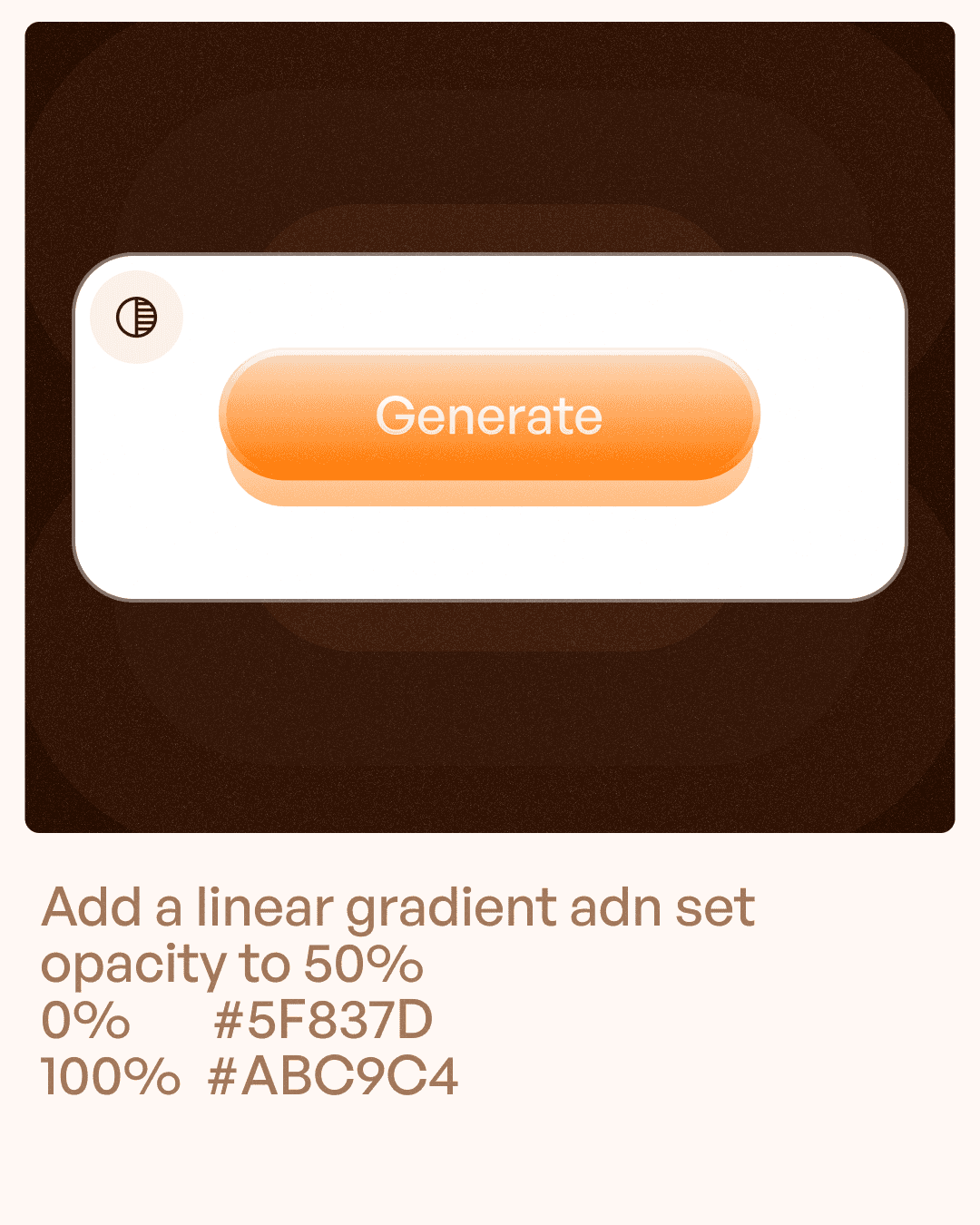
Step 7: Create the Glow Effect
Now add another gradient layer beneath the button.
Use values such as:
0% → #F5837D
100% → #ABC9C4
This secondary layer introduces a soft ambient glow around the button.
Keep the opacity low so the effect remains subtle.
Overusing glow effects can make buttons appear outdated or distracting.
The objective is to enhance the design without overpowering it.
Step 8: Apply Layer Blur
The final step is adding blur.
Apply a Layer Blur effect to the glow layer.
A blur value around:
35px
works well for most interfaces.
The blur softens the glow and creates a natural diffusion effect.
Without blur, the glow appears harsh and artificial.
With blur, it feels like realistic light spreading beneath the component.
This final detail is what transforms a standard gradient button into a polished 3D UI element.
Why This Technique Works
The button appears three-dimensional because multiple visual principles are working together.
The design uses:
Light-to-dark gradients
Layered highlights
Soft shadows
Glow diffusion
Contrast variations
Each individual effect is subtle.
Combined, they create depth and realism.
This is how professional UI designers build interfaces that feel polished without relying on excessive visual effects.
When to Use 3D Gradient Buttons
Not every interface needs a highly stylized button.
These buttons work best for:
Landing pages
SaaS marketing websites
AI products
Consumer applications
Premium product interfaces
Call-to-action sections
For highly regulated industries such as healthcare, banking, or enterprise software, more restrained versions are often appropriate.
Always match the visual style to the product and audience.
Common Mistakes to Avoid
Many designers overcomplicate gradient buttons.
Common mistakes include:
Using too many gradient colors
Adding excessive shadows
Applying strong glows
Using low-contrast text
Making gradients overly saturated
Good button design should still prioritize usability.
No visual effect should reduce readability or accessibility.
Remember:
A beautiful button that users cannot understand is still a bad button.
Final Thoughts
Designing 3D gradient buttons is not about adding random effects.
It's about carefully layering gradients, highlights, and blur to create a realistic sense of depth.
When done correctly, gradient buttons can:
Increase visual appeal
Strengthen call-to-actions
Improve hierarchy
Create a premium product feel
The best designs often rely on small details that users don't consciously notice.
A subtle highlight.
A soft glow.
A carefully chosen gradient.
Together, these details can transform a simple button into a component that feels modern, polished, and professional.


